
How to Look Good on Video Calls in 2026: Camera Height, Light and Framing That Actually Work
A practical guide to looking good on video calls in 2026: why laptop webcams distort faces, the right camera height and distance, cheap lighting that works, backgrounds that do not distract, framing, what to wear, glasses and stripes, and why the photo behind your name matters as much as the call.

ON THIS PAGE
Almost nobody likes the way they look on a video call. The usual explanation is vanity, or a bad camera, or the wrong side of forty. The actual explanation is geometry and light, and both are adjustable in about ten minutes with things you already own.
A laptop on a desk puts a wide lens about fifty centimetres from your face and roughly twenty centimetres below your chin. That combination does three unkind things at once: it exaggerates whatever is nearest the lens, it looks up your nose, and it pushes your forehead and jaw out of proportion. Then the room adds a ceiling light from above or a window behind you, and the video encoder throws away half the detail that would have made the image look like a photograph. The result is a face that is recognisably yours and mysteriously worse.
This guide is about the parts you control: where the camera sits, what lights your face, what is behind you, how you are framed, what you wear, and what the encoder does to all of it. It also covers the part people forget, which is the photo that represents you when the camera is off.
If you are preparing a proper portrait rather than a call, the method in how to take good pictures of yourself with a phone and the input checklist in how to take photos for an AI headshot generator apply here too. A video call is just a portrait taken by a worse camera from a worse position.
#The Short Answer
| Step | What to do | Why it matters |
|---|---|---|
| 1 | Raise the camera to eye level | A camera below the face looks up the nose and enlarges the jaw |
| 2 | Sit 1–1.5 m back, then zoom or crop | Distance reduces the wide-angle distortion of a close lens |
| 3 | Put a window or a lamp in front of you | Frontal light fills shadows; light from behind silhouettes you |
| 4 | Turn off the ceiling light | Light from above carves shadows under brows and jaw |
| 5 | Use a plain, mid-toned background | Busy walls steal attention and cost the encoder bitrate |
| 6 | Frame head and shoulders, eyes in the upper third | Correct framing reads as composed rather than accidental |
| 7 | Wear a solid mid-tone, avoid fine stripes | Stripes shimmer when the video encoder downsamples |
| 8 | Look at the lens when you speak | Looking at faces reads as looking away |
Everything below explains the reasoning and the exceptions.
#Why Video Calls Make You Look Worse Than You Are
It helps to separate what the camera invents from what is actually there. Almost all of it is invented.
#The lens is wide and the distance is short
Laptop and phone cameras use wide lenses so that a whole room fits in the frame. Wide lenses exaggerate whatever is closest to them, which in a selfie or a video call is your nose.
The effect is measurable. A 2018 study in JAMA Facial Plastic Surgery modelled short-distance portraits and found that a photo taken at 12 inches, roughly arm's length, increases perceived nasal width by about 30% in men and 29% in women compared with a portrait taken at 5 feet. A laptop webcam sits in that 12-to-20-inch range, so the same distortion applies, just without anyone calling it a selfie.
The fix is not a better camera. It is distance: sit further back, then crop or use a narrower field of view so that your head and shoulders still fill the frame.
#The camera is below your face
A laptop screen hinges up from the desk, which means the camera sits near the middle of the screen and, once you are sitting upright, several centimetres below your eyes. The camera then looks slightly up at you.
From below, the chin and the underside of the jaw take more of the frame, the neck looks shorter, and the nostrils become visible. It is the least flattering angle available, and it is the default on almost every laptop ever made.
Raising the laptop is the highest-value change in this entire guide. A stand, a stack of books, a cardboard box or a couple of reams of paper will do.
#The light is behind you or above you
Two lighting mistakes account for most of the rest.
A window behind you turns your face into a silhouette, because the camera exposes for the bright window rather than for you. No amount of editing recovers detail that was never recorded.
A ceiling light above you, or a lamp on a desk shining up at your chin, casts shadows in exactly the places people read as age and tiredness: under the brows, beside the nose and under the jaw. On a high-quality still photograph those shadows can be dramatic. On a compressed video stream they read as lines.
The reliable answer is a large, soft light in front of you, slightly lower than eye level rather than higher.
#Video compression removes the detail you rely on
Video calling delivers roughly 720p to 1080p at a bitrate that would make a photographer wince, and it subsamples colour aggressively to save bandwidth. Two consequences matter for how you look.
First, fine detail is the first thing to go, so texture, thin lines and small patterns turn to mush or shimmer. Second, high-contrast patterns cost more bitrate than flat areas, so a striped shirt or a bookshelf competes with your face for the encoder's attention.
That is why plain surfaces, solid colours and simple backgrounds look noticeably better on a call than they do in real life. You are not dressing for a room. You are dressing for a codec.

#Camera Height and Distance
#Get the lens level with your eyes
The target is simple: the centre of the lens should sit at the height of your eyes, or a couple of centimetres above them. At that height the proportions look normal, the chin and neck stop dominating the frame, and you appear to be looking at the person you are talking to.
A folded towel under the laptop is enough to test the difference. Before you buy anything, spend one call with the laptop raised and one without, and compare the two. Most people stop worrying about their face and start worrying about their posture, which is a much better problem.
If you wear glasses, a lens exactly at eye level can pick up a reflection of your screen. Raising the camera two or three centimetres above eye level usually clears it and looks, if anything, slightly better.
#Sit back and crop
Distance is the second half of the geometry fix. Sit around one to one and a half metres from the camera, then use the app's zoom slider, the camera's field of view setting or a modest crop so that your head and shoulders still fill the frame.
This feels wrong the first time, because most people are used to sitting close enough that their face fills the whole window. Sitting back also means the background becomes visible, which is why the background section below matters.
If the room is too small to move back, angle yourself into the longest diagonal, or use an external camera with a narrower field of view. Do not compensate by leaning in.
#An external camera is worth it
Most built-in laptop cameras are small sensors behind cheap wide lenses, and they are optimised for fitting a room into a frame rather than for photographing a face.
Almost any recent standalone webcam improves on this: better optics, less distortion, better low-light performance and, usually, a narrower default field of view. A camera on a small arm clamped to the desk or the monitor also solves the height problem permanently, which is the part people underestimate.
If you already own a mirrorless or DSLR camera and a capture card, that is the best image you will get. It is also the most effort, and the returns over a decent webcam are small for a call.
#Look at the lens, not at faces
This one is free and changes how you are perceived more than the resolution does.
The lens is not where the faces are. If you watch the faces on screen while you speak, you appear to be looking slightly down and to one side. If you look at the lens, you make eye contact with everyone.
The practical trick is to move the call window so that it sits as close to the camera as possible, then shrink it slightly. You then read faces by glancing at the top of the screen, near the lens, rather than at the centre. On some applications you can enable a setting that nudges the floating window toward the camera.
When you are listening rather than speaking, looking at the other person is correct and warmer. When you are making a point, look at the lens.
#Light: One Window, One Lamp, No Ceiling
If you only change one thing about your setup, change the light. It matters more than the camera, more than the background and more than what you wear.
#Face the window
A window with indirect daylight in front of you is the best free light there is. It is large, which makes it soft, and soft light wraps around a face instead of exposing every texture.
Position yourself so the window is in front of you and slightly to one side, at roughly 30 to 45 degrees. That gives a gentle shadow on one side of the face, which preserves shape, while still filling the shadows that read as lines.
Direct sun through the window is too harsh and will make you squint. Wait for cloud, move back from the glass, or hang a white sheet or a sheer curtain across it.
#Turn off the ceiling light
A ceiling fixture is the worst light for a face, and it is the default light in almost every office and kitchen. It puts the light source above and slightly behind the brow line, which casts shadows under the brows, beside the nose and under the jaw.
Turn it off for the call. If the room becomes too dark, the window plus one lamp will be enough.
A desk lamp pointing up at your face from below is the opposite error: it lights the underside of the chin and the nostrils and looks like a horror film. Put the lamp at eye level and point it across your face rather than up at it.
#One diffused lamp beats a ring light
Ring lights are popular because they are cheap and marketed at exactly this problem. They work, but they are not the best option.
A ring light is small and usually placed close, so the light is relatively hard. It also produces a circular catchlight in each eye, which looks artificial on camera, and it often leaves a bright halo on the wall behind you. On a compressed stream, a bright halo behind the head costs bitrate and makes the edges of your hair look crunchy.
A single lamp with a shade, a diffuser or a sheet of white paper taped over it, placed at eye level and slightly to one side, looks more like window light and less like a product photo. Bigger and softer beats brighter, every time.
If you have no window and no lamp, a floor lamp behind the camera, aimed at the wall in front of you, bounces soft light back onto your face. It is not as good as a window, and it is much better than a ceiling light.
#Do not mix colour temperatures
A window gives cool daylight around 5500K. An old tungsten bulb gives warm light around 2700K. An LED desk lamp might be 4000K. Put two of those on the same face and the camera's automatic white balance picks one, so half your face turns blue or orange.
Pick one main light and turn the others off, or match the bulbs. If you cannot match them, let the window win and turn off the warm lamp.
#Exposure and skin tone
Webcams expose for the whole frame, so a bright window behind you, or a white wall lit by a lamp, drags your face down into shadow. Move so the brightest thing in the frame is not behind your head.
Many video apps now offer a mild "portrait" or "studio" correction that brightens the face. Use it sparingly. It is doing a crude version of what a photographer does with a fill light, and at high settings it flattens the face and introduces a visible edge around the hair.
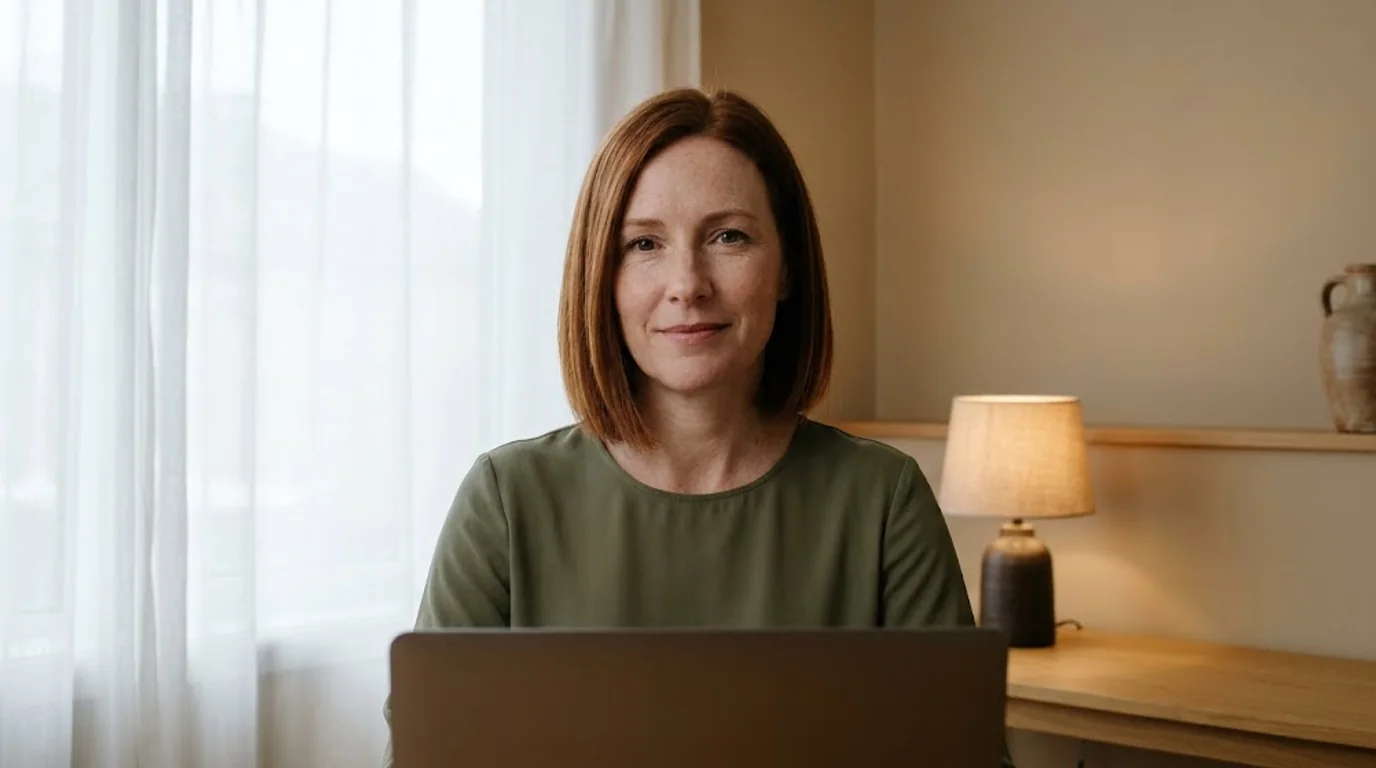
#Background: Depth Without Clutter
Backgrounds are where video calls differ most from portrait photography, because you cannot choose a backdrop, only what happens to be behind you.
#The three-second rule
Look at your preview and ask what a stranger would learn about you in three seconds. If the answer is "he has a lot of laundry", the background is doing damage.
The fix does not require a minimalist apartment. Turn the camera so it faces a wall, a door, a curtain or a corner. Move the pile of boxes out of frame. Sit so that the chair back and your shoulders hide the desk clutter behind you.
#Depth reads as professional
A completely flat wall looks like a passport photo. A wall with a little depth, such as a plant a metre behind you or a lamp in the corner out of focus, looks like a room and adds separation between you and the background.
The key is that the depth sits behind you at a distance, not beside you in the frame. A plant next to your shoulder competes with your face; the same plant two metres back reads as texture.
#Virtual backgrounds: honest limits
Virtual backgrounds are better than a genuinely messy room and worse than a tidy wall. The weak point is the edge: hair, glasses, shoulders and chair backs get cut out or smeared, and the artefact is more obvious on a compressed stream than in the preview.
If you use one:
- Choose a still image with soft depth rather than a busy office photo.
- Sit still, and keep hair away from the edge of your silhouette.
- Avoid strong backlight, which makes the cutout worse.
- Prefer blur to replacement if the app offers both. Blur hides detail without pretending to be a different room.
Green screens improve the cutout a lot, but they require even lighting on the screen and correct distance from it. For most people, a plain wall is less work and looks better.
#What to remove
Not everything, just the things that move or glow. A fan, a spinning chair, a TV, a monitor showing a feed, a reflection in a window, a cat that walks through the frame. Movement behind you pulls attention away from what you are saying, and video encoders spend their bitrate on it.

#Framing and Posture
#Head and shoulders, eyes in the upper third
A good call frame contains your head and shoulders with a little space above your head. Put your eyes about a third of the way down from the top of the frame.
The two common errors are opposites. The first is too much headroom, where you sit in the lower half of the frame with a metre of wall above you, which makes you look small and defensive. The second is a face that fills the entire window, which exaggerates every feature and feels uncomfortably close.
Sit so that your shoulders are visible and the bottom of the frame cuts somewhere around the upper chest. If your background is interesting, allow a little more of it. If it is a plain wall, keep it tight.
#Sit forward, not back
Leaning back into the chair is comfortable and reads as disengaged. Sitting slightly forward, with your weight on the front of the seat and your back still supported, reads as attentive and has a practical benefit: it stops the shoulders from rounding.
Keep the camera level. If the laptop tilts back, vertical lines in the background will lean, and the whole frame looks like it is falling over. A stack of books under the hinge fixes both the tilt and the height at once.
#Hands and shoulders
Hands are the hardest part of any portrait, and on a call they are visible more often than in a photograph because you move.
Rest your forearms on the desk or your hands in your lap. Do not hold a pen you are not using, and do not gesture with both hands close to the lens, which makes them loom. Small gestures at chest height look natural on camera; wide ones look theatrical.
Drop your shoulders on an exhale before the call starts. Most people hold them up near their ears without noticing, and raised shoulders shorten the neck.
#Movement and stillness
A completely still person looks like a frozen video. Small natural movement, a nod, a shift in weight, a hand gesture, signals that the connection is alive and that you are listening.
The exception is fast movement, which turns into blur at low bitrates. If you need to reach for something, do it slowly, or say what you are doing first.
#What to Wear on Camera
#Solid colours and mid-tones
A solid mid-tone that contrasts with your background and your skin is the safest choice. Navy, olive, teal, rust, charcoal and soft burgundy all work. Light blue and grey are good for a formal look without the severity of black.
Pure white next to a white wall clips, loses all detail and makes the background and the shirt merge. All black loses detail in shadow and turns into a silhouette. Both look worse on a compressed stream than they do in a photograph.
#Avoid fine stripes and small checks
This is the one wardrobe rule that is genuinely technical. Fine stripes, tight herringbone, small checks and some knits produce a shimmering, crawling pattern on video, because the encoder samples the image too coarsely to resolve the pattern consistently between frames.
The effect is called moiré, and it is distracting in a way viewers cannot name. They just think the picture looks bad.
If you want a pattern, make it large and simple. A wide stripe or a bold block print survives compression. A pinstripe does not.
#Glasses
Glare is an angle problem. Move the light to the side rather than straight in front, tilt your head or the screen a few degrees, and check the preview before the call rather than during it.
Anti-reflective coatings help. A camera slightly above eye level helps more. A ring light directly in front is the worst case.
Do not take your glasses off for the call if you never take them off in life. People who have known you for years will spend the meeting wondering what is different.
#Hair, beards and jewellery
Hair and beards read as texture on video, and texture is the first thing compression removes. Neat is better than styled: a fringe that falls across the eyes will disappear into a smudge.
Shiny jewellery catches the key light and produces a small bright highlight that pulls the eye. A watch or a plain chain is fine. Anything that flashes when you move is not.

#The Details That Read as Competence
#Bandwidth is part of your appearance
A call that stutters, freezes or drops to a blurry blocky image makes you look unprepared, even when the cause is the connection.
- Use a cable rather than Wi-Fi when the call matters.
- Close the applications you are not using, especially anything syncing files.
- Turn your own camera off while screen sharing if the app is struggling; a still avatar looks better than a frozen face.
- Ask the other side to check their connection too. Half of what people call "bad video" is happening at the other end.
#Framerate beats resolution
A smooth 720p stream looks better than a stuttering 1080p one. If your app lets you choose, prefer a stable lower resolution. Motion is what the eye notices first.
#Nodding, smiling and listening
The single most common mistake on video calls is not visual at all: people stop reacting. In a room, you nod, murmur and smile without thinking. On a call, everyone goes still to avoid talking over each other, and the result is twelve faces staring.
Nod once when you agree. Smile when something is funny. Say "yes" when you follow. It costs nothing and it is the difference between looking present and looking like a paused video.
#The mute trap
Being muted while speaking enthusiastically is a small humiliation that has happened to everyone. Check the mute icon before you start a long sentence, and if you are the host, say the first few words out loud before assuming the room can hear you.
The visual version of the same problem is talking while looking down at notes. Glance, then look up.
#Phone, Tablet or Laptop
A modern phone has a much better camera than a laptop, and much worse ergonomics for a long call.
For a short call, a phone propped at eye level with a stand, in front of a window, will look better than any laptop. The rear camera is usually better than the front camera, but using the rear camera means you cannot see the screen, so it only works if the phone is positioned for you rather than by you.
For a long call, a laptop or desktop with an external camera is better: bigger screen, stable position, no battery anxiety.
Tablets sit between the two. They are often at a good height on a stand, and their cameras are usually better than a laptop's.
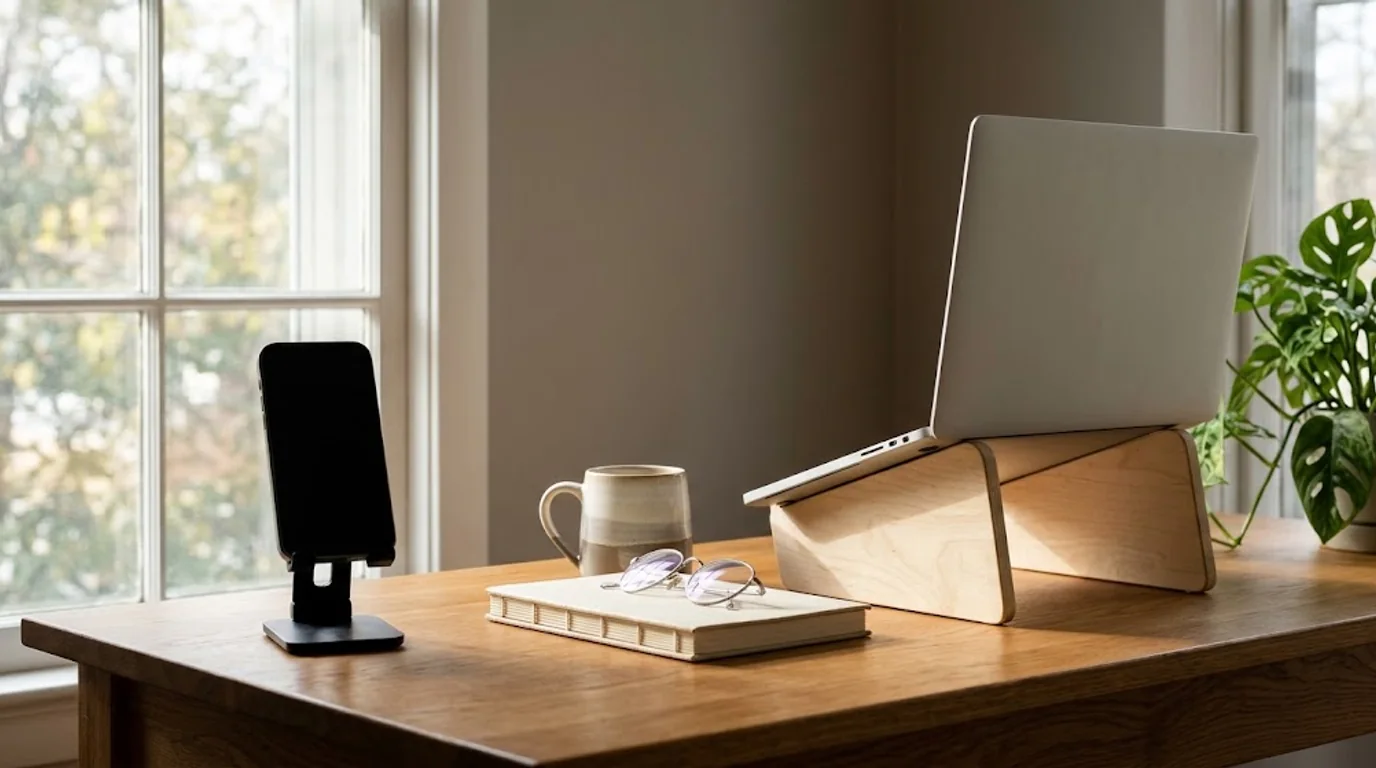
#The Photo Behind Your Name
Everything above is about the ten minutes you are on camera. There is a second image of you that appears far more often, and almost nobody optimises it: the profile photo attached to your account.
#Why the avatar matters more than the call
Your camera is off for part of most calls, and off entirely for many of them. When it is off, the only thing on screen is your photo. The same photo sits in the participant list, in chat, in the calendar invite, in the follow-up email and in the little bubble that appears whenever you speak.
People see it dozens of times for every minute they see your face on video. A weak avatar is therefore a bigger visual problem than a weak webcam, and it is much easier to fix.
#What makes a good avatar
- A recent face. The photo should look like the person who joins the call.
- Soft frontal light. The same lighting rule as the call, applied once instead of every week.
- A plain background. It is displayed small and usually cropped to a circle, so detail is wasted.
- Head and shoulders, centred. Circular crops remove the corners, so keep your face near the middle.
- A neutral-to-warm expression. Not a grin, not a passport stare.
- Enough resolution. At least 400 by 400 pixels after cropping to use as a profile picture.
Circular crops cause most avatar problems, because a photo that looked fine as a rectangle loses the top of the head and the outside of the shoulders. If you are choosing between photos, preview the crop before you upload; our free circle cropper shows exactly what a circular avatar will keep.
#When an AI headshot makes sense
If you do not have a usable recent photo, or you need the same face across a website, a proposal, a team page and a call account, an AI headshot is a reasonable way to get one consistent portrait without booking a photographer.
Two conditions keep it honest. First, the result has to be built from your own photos rather than a generic face. Second, it has to keep your features, your hairline and your age. The failure mode with AI portraits is over-smoothing: a face with no texture, no lines and slightly different proportions, which looks impressive alone and slightly wrong next to the person on the call.
Our Nothron Neural Headshot Generator works from photos you upload and is aimed at preserving the face rather than inventing one. The input checklist in how to take photos for an AI headshot generator is the part that decides the quality of the output. For the trust question, LinkedIn AI headshots and authenticity covers where the line sits.
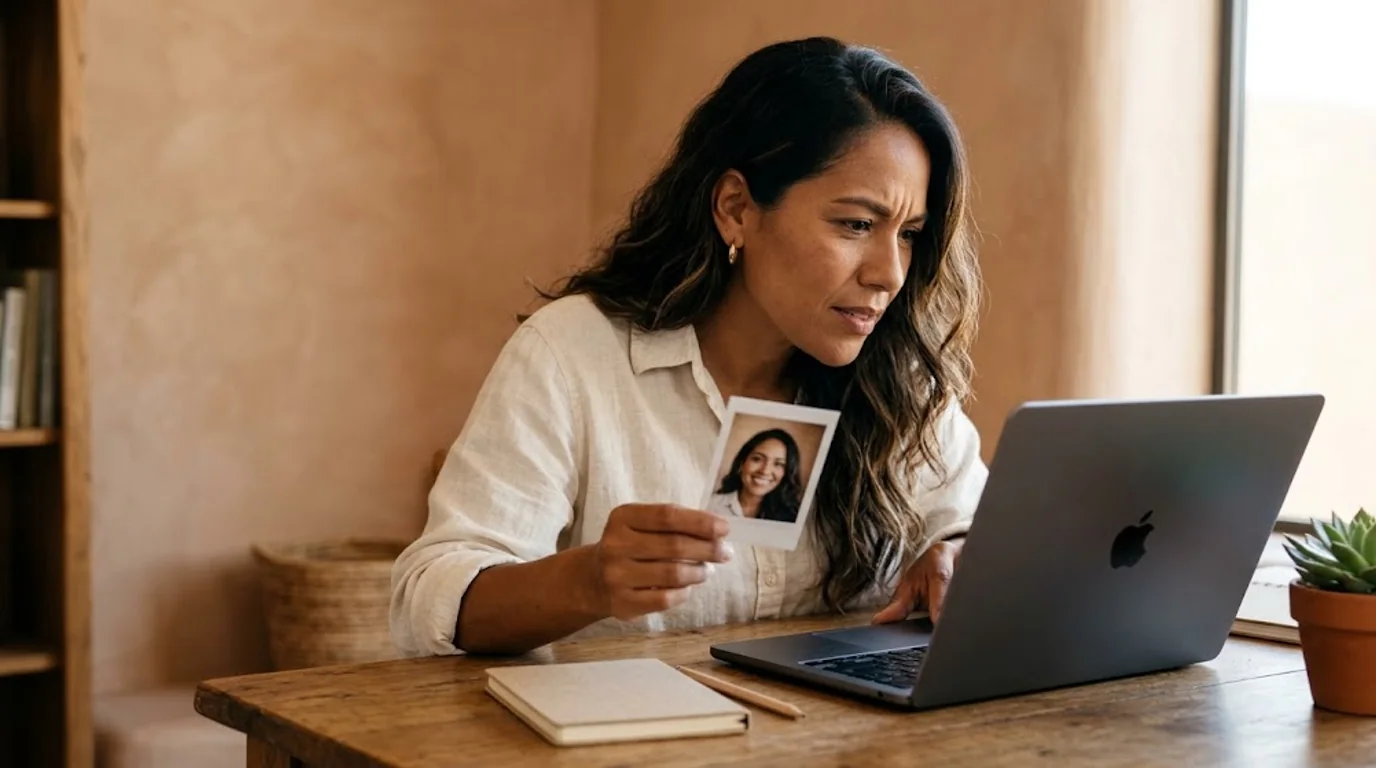
#A 10-Minute Pre-Call Checklist
- Raise the camera until the lens is level with your eyes.
- Sit one to one and a half metres back, then crop or zoom to head and shoulders.
- Turn off the ceiling light. Face the window, or put one lamp at eye level.
- Clear the background: no laundry, no moving objects, no bright window behind you.
- Check the preview for glare in your glasses and for a stray highlight on your forehead.
- Wear a solid mid-tone. Change the striped shirt if you have one on.
- Check the mute icon, the camera permission and the battery.
- Look at the lens when you introduce yourself.
#Frequently Asked Questions
#Why do I look worse on video calls than in real life?
Three things usually do it: the camera is close and wide, so the nose and forehead are exaggerated; the camera sits below your face, so the chin and neck fill the frame; and the main light is behind you or directly above you, which either silhouettes you or carves shadows under the brows and jaw. None of that is your face. Raise the camera to eye level, move it back, and put a window or a lamp in front of you.
#What is the best height for a webcam?
Eye level, or a few centimetres above it. At eye level the proportions are closest to how people see you and you appear to be looking at the other person. A laptop on a desk puts the camera well below your face, which is why laptops on desks are the single most common reason people dislike their own video image. Raise the laptop on a stand, a stack of books or a box until the lens is level with your eyes.
#Is a ring light worth it for video calls?
A large window in front of you is better and free. If you need artificial light, a single lamp with a diffuser placed at eye level, slightly to one side, looks more natural than a small ring light. Ring lights are small and close, so they produce flat light, a visible circular catchlight in the eyes and a slight halo on the wall behind you. Larger and softer always beats brighter.
#Should I turn off the ceiling light?
Yes, if it is the main source of light on your face. Light from directly above casts shadows under the brows, beside the nose and under the jaw, and on a compressed video stream those shadows read as deeper lines and a heavier jaw. Replace it with a window or a lamp at eye level and the face flattens out in the way people expect.
#What should I wear on a video call?
A solid colour in a mid-tone that contrasts with your background. Navy, olive, teal, rust and soft burgundy all work. Avoid pure white and all black, which clip on a compressed stream, and avoid fine stripes, small checks and tight herringbone, which shimmer because the video encoder cannot resolve them. A collar frames the face and reads as slightly more formal than a t-shirt without feeling like a suit.
#Why do my glasses glare on video calls?
The light source is reflecting off the lens into the camera. Move the light to the side rather than straight in front, tilt the screen or your head a few degrees, and check where the reflection sits in the preview before the call starts. A ring light directly in front is the worst case; a window at 30 to 45 degrees is usually the cleanest.
#Do virtual backgrounds look unprofessional?
They look worse than a real, tidy wall and better than a messy room. The problem is the edge: hair, glasses, shoulders and chair backs get cut out or blurred badly, and the effect is obvious on a compressed stream. If you must use one, choose a still image with soft depth, sit still, and keep your hair away from the edge of your silhouette. A plain wall and a lamp is a better investment than a better background image.
#Where should I look during a video call?
At the camera lens when you are speaking, not at the faces on screen. Looking at faces makes you appear to be looking down and away from the person you are talking to, because the lens is not where the faces are. Put the call window as close to the lens as possible, or shrink the window and drag it near the top of the screen, so that reading faces and looking at the camera are almost the same action.
#How far should I sit from the camera?
Roughly one to one and a half metres, with the camera at eye level, then crop or zoom so that your head and shoulders fill the frame. Sitting 40 to 60 centimetres away, which is where a laptop screen puts you, exaggerates the nose and forehead in the same way a selfie does. If you cannot move back, use a narrower field of view or an external camera rather than moving closer.
#How do I frame myself properly on a video call?
Head and shoulders, with your eyes about a third of the way down from the top of the frame and a small amount of space above your head. Do not centre yourself with a lot of air above you, and do not fill the frame with your face. Sit slightly forward rather than leaning back into the chair, and keep the camera level so that vertical lines in the background stay vertical.
#Does the profile photo on my account matter for video calls?
It matters more than most people think, because it is the version of you that appears when your camera is off, when you are muted, in the participant list, in chat and in every follow-up email. A clear, recent, well-lit headshot that looks like you is worth more than any change you can make to a single call, because it is seen far more often.
#Should I use an AI headshot as my video call profile photo?
Yes, if the result still looks like you and is recognisable as the person who joins the call. The risk is over-smoothing: an AI portrait that removes your features, your age or your real hairline creates a small jolt when your camera turns on. Use a tool built from your own photos, check the result against a real photo at full size, and keep the face, the hairline and the age you actually have.
#The Bottom Line
Looking good on a video call is not a matter of genetics or expensive equipment. It is four decisions made once: put the lens at eye level, sit far enough back that the wide lens stops exaggerating your nose, put a large soft light in front of you instead of a ceiling light above you, and keep the background quiet.
Then do the two things that cost nothing and get noticed most: look at the lens when you speak, and react like a person rather than a paused video.
The last piece is the one you set once and forget. A clear, recent, honestly lit photo behind your name will be seen more often than your face ever will be on camera, and it is the only part of this list that also works in the calendar invite, the chat thread and the email that follows.
#Methodology and Sources
This guide separates three kinds of statement:
- Published: a peer-reviewed finding or a named photographic source.
- Practical: a technique from portrait and video production practice, labelled where it is judgement rather than measurement.
- Opinion: a recommendation from this team, such as the preference for window light over ring lights.
Sources checked on 3 November 2026:
- Ward B, Ward M, Fried O, Paskhover B. Nasal Distortion in Short-Distance Photographs: The Selfie Effect. JAMA Facial Plastic Surgery. 2018;e180009. The 30% (male) and 29% (female) figures for perceived nasal width at 12 inches versus 5 feet.
- Bailenson JN. Nonverbal Overload: A Theoretical Argument for the Causes of Zoom Fatigue. Technology, Mind, and Behavior. 2021;2(1). The four mechanisms behind video-call fatigue, including mirror anxiety and the effects of constant close-up gaze.
- Adobe, Portrait photography tips and ideas from experts. Guidance on softening light for portraits and on the relationship between key and fill.
- Digital Photography School, A Beginner's Guide to Taking Portraits of Elderly Clients: Part 2 – Lighting and Posing. Lower key light, soft diffused light, short lighting and glasses reflections.
The compression observations are practical, not measured: they describe how block-based video encoders behave with fine patterns, high-contrast edges and moving backgrounds. The lighting guidance is photographic convention, not a medical recommendation. The distortion figures describe lens geometry, not attractiveness.
#Explore Other Nothron Tools
Nothron is not just a headshot generator — it is a complete AI photo studio:
#AI Tools
- Nothron Neural Engine — Sharpen, upscale, and clean up a low-resolution photo
- Nothron Natural Glow — Improve skin tone without making the face look artificial
- Nothron Legacy Touch — Restore an older photo before you rebuild your set
#Photo Editing Tools
- Photo Editor — Adjust brightness, contrast, and background details
- Free Online Image Cropper — Crop to the ratio each app expects
- Free Online Circle Cropper — Preview how a photo reads as a circular avatar
#Dashboard Tools
- Nothron Neural Headshot Generator — Create dating and professional portraits with AI
- Dashboard Neural Engine — Advanced AI photo enhancement
- Dashboard Natural Glow — AI-powered skin tone enhancement
- Dashboard Legacy Touch — AI old photo restoration
#Other Blog Posts
- How to Take Photos for an AI Headshot Generator — The 10–15 photo checklist
- How to Take Good Pictures of Yourself in 2026 — The general phone-only method
- Should You Smile in Your Headshot? — What the research says
- LinkedIn AI Headshot Authenticity — How to keep a portrait recognisably you
- Professional Headshot Guide by Profession — What each industry expects
- How to Take Good Pictures of Yourself After 60 — The same light and posture rules for older faces
#Author Biography
Nothron Team is a group of AI and photo editing experts dedicated to building the best AI headshot generator and photo editing platform. With years of experience in AI technology, computer vision, and professional photography, we built Nothron as a platform where anyone can create studio-quality portraits. Our mission is to make professional photo editing accessible to everyone through advanced AI technology.
Nothron Team
The Nothron team turns experience in AI, computer vision and professional photography into a photo studio that anyone can use.